- Published on
Infinite Scroll — An Indepth implementation guide
- Authors

- Name
- Faddal Ibrahim
- @faddaldotdev

Introduction
Because of infinite scroll, users can keep scrolling forever on their favorite social media apps without having to click on any buttons to load more content, providing a seamless experience that keeps them engaged.
On a basic technical level, new content is fetched from the server when the user reaches the bottom of the currently loaded page. This newly fetched content is then dynamically added to the page, creating the illusion of an endless stream of information.
This post focuses on the indepth technical logic behind this technique and its implementation using ReactJS.
- How do we know we are at the bottom of the page?
- Using Web Geometry
- Using Intersection Observer API
- Clean Code
- Tweaks & Optimizations
- React Native Implementation
- Conclusion
How do we know we are at the bottom of the page?
How do we know we are at the bottom of the page and therefore need to fetch more content?. Answering this question unlocks the entire infinite scroll logic. There are 2 ways to do this : Web Geometry and Intersection Observer.
Using Web Geometry
Logic
The browser maintains real-time reference of its geometry during interactions and navigation. For example, when you click on any part of your screen, the browser knows exactly the co-ordinates of the point clicked. When you scroll, it knows how far the distance and a whole lot more. We will leverage this feature of the browser to implement our infinite scroll. Here is a useful tool that visualizes the browser's geometry.
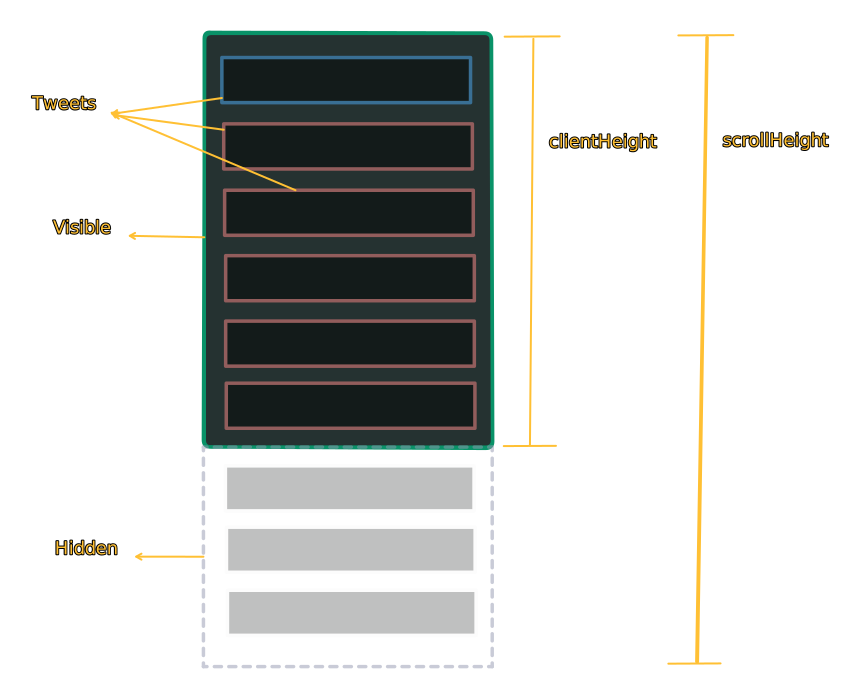
Using the X (formerly twitter) feed as a reference, assuming there is an initial load of 9 tweets. Because your phone has a fixed height and can only show 6 tweets, it leaves 3 tweets hidden until you scroll.
The height of the visible portion of the scrollable content (the 6 tweets), is the clientHeight
The total height of the scrollable content, including the portion not visible (6 visible tweets + 3 hidden tweets) is the scrollHeight
In the diagram below, the green background portion is the clientHeight. Then the green portion together with the gray portion is the scrollHeight
Now what happens when we scroll?
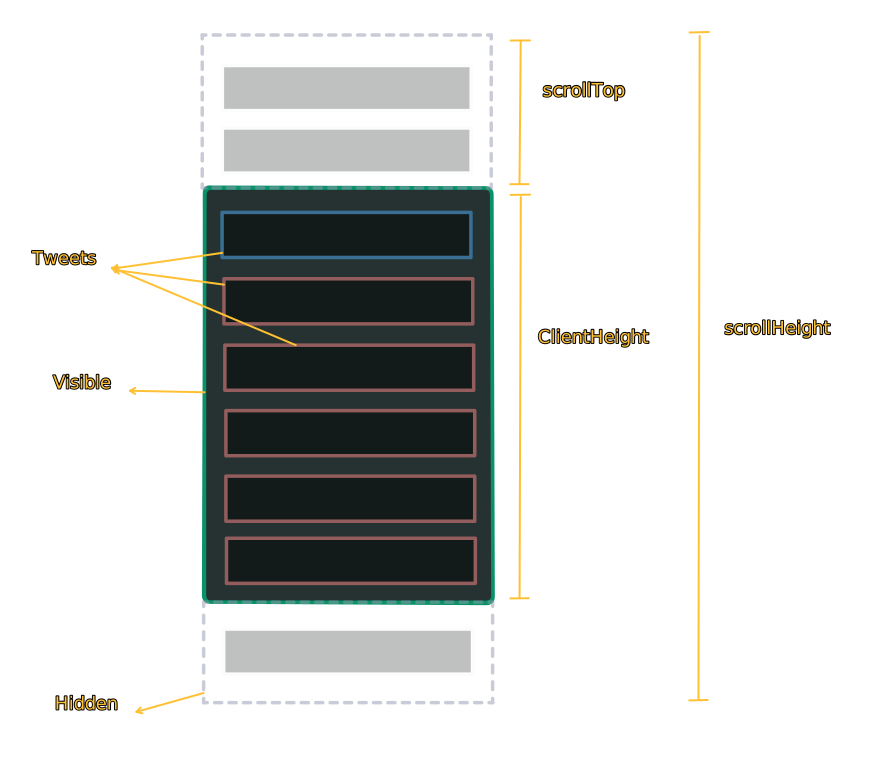
Some of the visible tweets move up out of the viewport, allowing some of the hidden tweets from the bottom to move up into the viewport. When this happens, a new value called scrollTop comes into play.
scrollTop is the vertical offset of the scrollbar from the top of the container. In simple terms, it tells us how far down the user has scrolled. The more the user scrolls, the more the scrollTop value increases. This scrollTop is essentially made up of the tweets that moved up out of the viewport during scroll.
Hence, at any point in time during scrolling, there are hidden tweets at the top and bottom. As already mentioned, the top part forms the scrollTop. The height of the bottom part (let's call it bottomHiddenTweetsHeight), is non-existent in web geometry and its value can't be extracted from the browser. However, its height can be derived...
You can already see that
Now, Imagine we continue scrolling and exhaust all the tweets. You can already guess what happens, right? There is no more bottomHiddenTweetsHeight. All the tweets are now within the scrollTop and clientHeight only.
Therefore, when we have exhausted all tweets scrollTop + clientHeight becomes equal to the scrollHeight
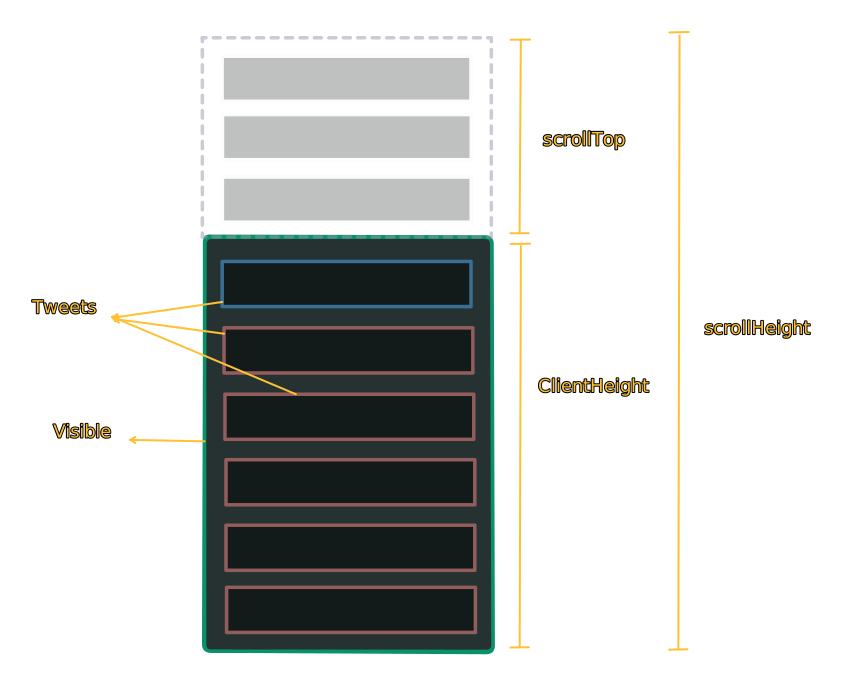
Bingo! That's how we know we are at the bottom and therefore need to load more tweets.
if(scrollTop + clientHeight === scrollHeight){
    loadMoreTweets()
}
Code
In this section, we incrementally build the logic, adding more and more code to each previous step. It's important however to note that this implementation will be a crude one to ease understanding. There are sections futher down to discuss Clean Code and Optimization
Step 1 : Create the barebones tweets page
Let's call it X
export default function X(){
    return <div>tweets will be loaded here</div>
}
Step 2 : Add a scroll listener to the tweets main container
Here, we create a reference to the container called containerRef and attach it to the returning div container
Secondly, we use useEffect hook to immediately attach the scroll event to the container when the page first loads. The return function in the useEffect removes the scroll listener when the component unmounts.
The callback function for the scroll listener is empty for now
import { useEffect, useRef } from "react";

export default function X(){
    const containerRef = useRef(null);

    useEffect(() => {
        const container = containerRef.current;

        if (!container) return;

        container.addEventListener("scroll", () => {}); // emty callback; to be implemented in next step

        return () => container.removeEventListener("scroll", () => {}); // remove listener on unmount
    }, []);

    return <div ref={containerRef}>tweets will be loaded here</div>
}
Step 3 : Create the callback function for the scroll listener
When scrolling is detected, the callback function, handleScroll, is triggered. In the same function, there is a check to detect if we are at the bottom of the container.
However, we don't immediately fetch new tweets within this conditional check. We rather introduce a new state variable called page which we will increment whenever we reach the bottom of the container. This page state will be used to trigger the actual tweet fetching in the next step.
The next step explains why we need this page state.
import { useEffect, useRef } from "react";

export default function X(){
    const containerRef = useRef(null);
    const [page, setPage] = useState(1);

    const handleScroll = () => {
        const container = containerRef.current;

        if (!container) return;

        const { scrollTop, clientHeight, scrollHeight } = container;

        // Check if we've scrolled to the bottom
        if (scrollTop + clientHeight >= scrollHeight) {
          setPage((prevPage) => prevPage + 1)
        }
    };


    useEffect(() => {
        const container = containerRef.current;

        if (!container) return;

        container.addEventListener("scroll", handleScroll); // emty callback

        return () => container.removeEventListener("scroll", handleScroll); // remove listener on unmount
    }, []);

    return <div ref={containerRef}>tweets will be loaded here</div>
}
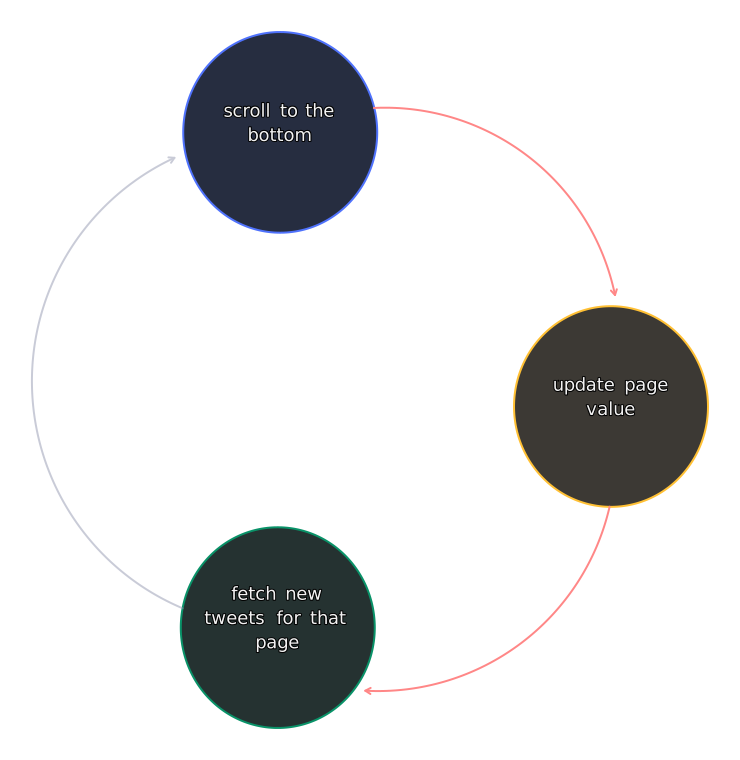
Step 3 : Trigger tweet fetching with a page state
Why do we need a page state?
Think of it as a number indicator for the next set of tweets that need to be fetched so that we don't fetch the same set of tweets over and over again . Assuming we are fetching tweets in sets of 4 (like flipping through the pages of a text book), Page 1 would correspond to the first set of 4 tweets. When we have scrolled through all 4 tweets, Page 2 would correspond to the second set of 4 tweets and so on. This page value is essential for the backend api to know what set of tweets to return to the frontend (More on this later).
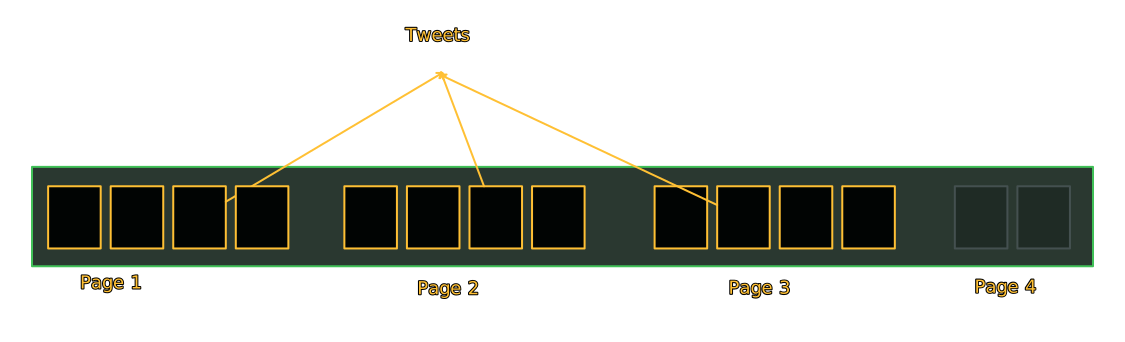
We start with an initial page value of 1, then increase it successively. Each increment is what will trigger the tweet fetch. But how? By using another useEffect and adding the page state to its dependency array. That way, whenever page is updated, the useEffect runs, which will call the actual fetchTweets function!
In the code, notice how we pass the page value as a parameter to the fetchTweets function!
import { useState, useEffect, useRef } from "react";

export default function X(){
    const containerRef = useRef(null);
    const [page, setPage] = useState(1);

    const handleScroll = () => {
        const container = containerRef.current;

        if (!container) return;

        const { scrollTop, clientHeight, scrollHeight } = container;

        // Check if we've scrolled to the bottom
        if (scrollTop + clientHeight >= scrollHeight) {
          setPage((prevPage) => prevPage + 1)
        }
    };

    useEffect(() => {
        const container = containerRef.current;

        if (!container) return;

        container.addEventListener("scroll", handleScroll); // emty callback

        return () => container.removeEventListener("scroll", () => {}); // remove listener on unmount
    }, []);

    // Fetch tweets when the page changes
    useEffect(() => {
        fetchTweets(page);
    }, [page]);

    return <div ref={containerRef}>tweets will be loaded here</div>
}
Step 4 : Create the fetchTweets function
import { useState, useEffect, useRef } from "react";

export default function X(){
    const containerRef = useRef(null);
    const [page, setPage] = useState(1);
    const [tweets, setTweets] = useState([]);

    /************************** handleScroll function *************************************************/
    const handleScroll = () => {
        const container = containerRef.current;

        if (!container) return;

        const { scrollTop, clientHeight, scrollHeight } = container;

        // Check if we've scrolled to the bottom
        if (scrollTop + clientHeight >= scrollHeight) {
          setPage((prevPage) => prevPage + 1)
        }
    };

    /************************** Add scroll event listener *************************************************/
    useEffect(() => {
        const container = containerRef.current;

        if (!container) return;

        container.addEventListener("scroll", handleScroll); // emty callback

        return () => container.removeEventListener("scroll", () => {}); // remove listener on unmount
    }, []);

    /************************* Fetch tweets when the page changes **************************************************/
    useEffect(() => {
        fetchTweets(page);
    }, [page]);

    /***************************** Fetch Tweets Function **********************************************/
    const fetchTweets = async (currentPage: number) => {
        try {
            const response = await fetch(`/api/tweets?page=${currentPage}`);

            // Check if the request was successful
            if (!response.ok) {
                throw new Error('Failed to fetch tweets');
            }

            const data = await response.json();

            setTweets(data.tweets);
        } catch (error) {
            // Handle error if the fetch fails
            console.error("Error fetching tweets:", error);
        }
    };

    return <div ref={containerRef}>tweets will be loaded here</div>
}
Step 5 : Render tweets in the container
import { useState, useEffect, useRef } from "react";

export default function X(){
    const containerRef = useRef(null);
    const [page, setPage] = useState(1);
    const [tweets, setTweets] = useState([]);

    /************************** handleScroll function *************************************************/
    const handleScroll = () => {
        const container = containerRef.current;

        if (!container) return;

        const { scrollTop, clientHeight, scrollHeight } = container;

        // Check if we've scrolled to the bottom
        if (scrollTop + clientHeight >= scrollHeight) {
          setPage((prevPage) => prevPage + 1)
        }
    };

    /************************** Add scroll event listener *************************************************/
    useEffect(() => {
        const container = containerRef.current;

        if (!container) return;

        container.addEventListener("scroll", handleScroll); // emty callback

        return () => container.removeEventListener("scroll", () => {}); // remove listener on unmount
    }, []);

    /************************* Fetch tweets when the page changes **************************************************/
    useEffect(() => {
        fetchTweets(page);
    }, [page]);

    /***************************** Fetch Tweets Function **********************************************/
    const fetchTweets = async (currentPage: number) => {
        try {
            const response = await fetch(`/api/tweets?page=${currentPage}`);

            // Check if the request was successful
            if (!response.ok) {
                throw new Error('Failed to fetch tweets');
            }

            const data = await response.json();

            setTweets((prevTweets) => [...prevTweets, ...data.tweets]);
        } catch (error) {
            // Handle error if the fetch fails
            console.error("Error fetching tweets:", error);
        }
    };

    return (
        <div ref={containerRef}>
            {tweets.map((tweet) => (
                <Tweet data={tweet} key={tweet.id}>
            ))}
        </div>
    )
}
Using Intersection Observer API
Using the Intersection Observer API is the better, cleaner and more intuitive way to implement infinite scrolling. This API allows you to detect when an element enters or exits in an area of another DOM element or the viewport.
From the MDN Docs
The Intersection Observer API lets code register a callback function that is executed whenever a particular element enters or exits an intersection with another element (or the viewport), or when the intersection between two elements changes by a specified amount
This means there is no need to keep recalculating scroll points over and over again! All we need is to add an additional element (let's call it the scroll-anchor) to the bottom of the tweets and when this anchor is scrolled into the viewport, more tweets get loaded.
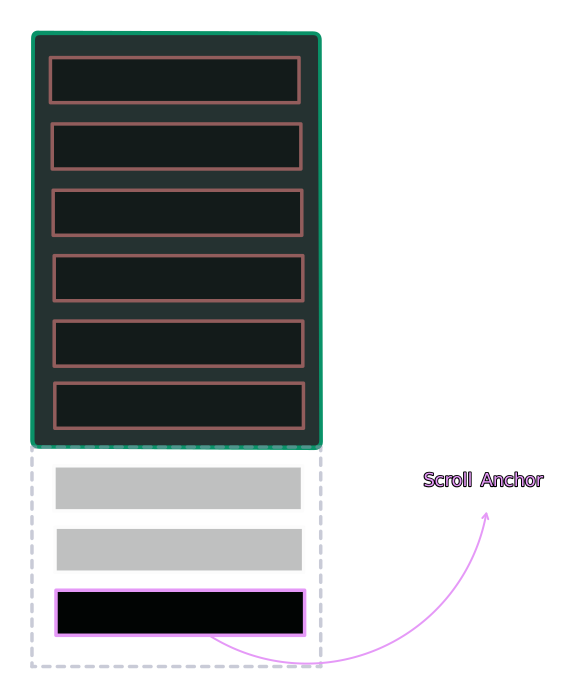
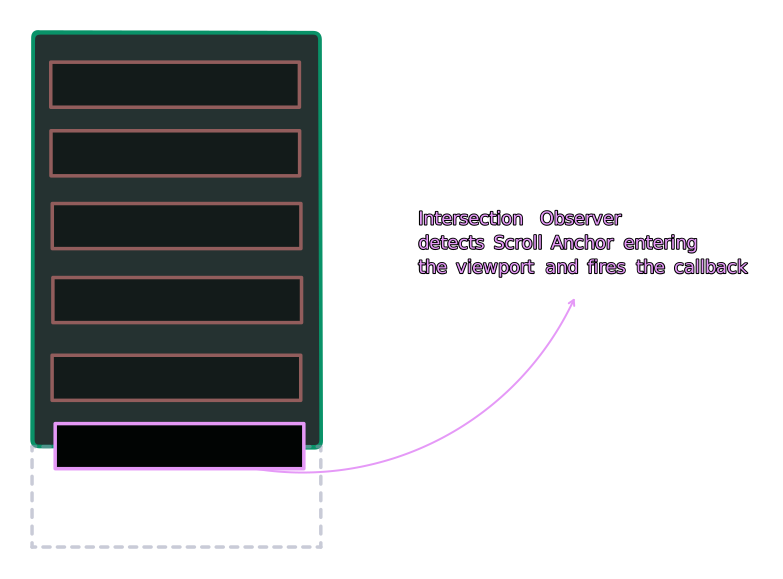
But how?
Basic Setup of Intersection Observer
const options = {
  root // The container element
  threshold // The percentage of the target's visibility the observer's callback should be executed
}

const observer = new IntersectionObserver(callback, options) // the observer
The root is the element that is used as the viewport for checking visibility of the scroll anchor. In our case, it will be the tweets container.
The threshold is a number between 0 and 1 that indicates at what percentage of the target's visibility the observer's callback should be executed. A value of 1.0 means that the callback will be executed when 100% of the target is visible within the root.
The callback is the function that will be executed when the target intersects with the root at the specified threshold. In our case, this is where we will increment the page state to trigger tweet fetching.
There are a few other values you can set in the options object. Explore in the MDN Docs
Code Implementation
In React, we will use refs to reference both the container and the scroll-anchor.
In the obersever callback, we check if the scroll-anchor is intersecting with the container. If it is, we increment the page state to trigger tweet fetching. Also note the !loading check to prevent multiple fetches while a fetch is already in progress.
Furthermore, the reason why we do const entry = entries[0]; is because the callback can be triggered for multiple observed elements, but in our case, we are only observing one element (the scroll-anchor), so we just take the first entry.
Try logging entries to see what it contains!
import { useState, useEffect, useRef } from "react";

export default function X() {
  const containerRef = useRef<HTMLDivElement | null>(null);
  const anchorRef = useRef<HTMLDivElement | null>(null);

  const [page, setPage] = useState(1);
  const [tweets, setTweets] = useState([]);
  const [loading, setLoading] = useState(false);

  /***************** Intersection Observer Setup ***********************/
  useEffect(() => {
    if (!anchorRef.current) return;

    const observerCallback: IntersectionObserverCallback = (entries) => {
      const entry = entries[0];

      if (entry.isIntersecting && !loading) {
        setPage((prev) => prev + 1);
      }
    };

    const observer = new IntersectionObserver(observerCallback, {
      root: containerRef.current,
      threshold: 0.1,
    });

    observer.observe(anchorRef.current);

    return () => {
      observer.disconnect();
    };
  }, [loading]);

  /************** Fetch tweets when the page changes ***************/
  useEffect(() => {
    fetchTweets(page);
  }, [page]);

  /************** Fetch Tweets Function ***************/
  const fetchTweets = async (currentPage: number) => {
    try {
      setLoading(true);

      const response = await fetch(`/api/tweets?page=${currentPage}`);
      if (!response.ok) throw new Error("Failed to fetch tweets");

      const data = await response.json();
      setTweets((prev) => [...prev, ...data.tweets]);
    } catch (err) {
      console.error("Error fetching tweets:", err);
    } finally {
      setLoading(false);
    }
  };

  return (
    <div
      ref={containerRef}
      style={{ height: "700px", overflowY: "auto" }} // ensure scrollable
    >
      {tweets.map((tweet: any) => (
        <Tweet data={tweet} key={tweet.id} />
      ))}

      <div ref={anchorRef} style={{ height: 1 }} />

      {loading && <p>Loading...</p>}
    </div>
  );
}
Clean Code
Here are some tips to make the code cleaner and more maintainable.
Custom Hook (Extract the fetching logic into a custom hook)
/**
 * Custom hook to fetch tweets with pagination
 *
 * @return {Object} - An object containing tweets, loading state, and setPage function
 *
 * @property {Array} tweets - The list of fetched tweets
 * @property {boolean} loading - Indicates if tweets are being fetched
 * @property {Function} setPage - Function to set the current page for fetching tweets
 *
 * @example
 * const { tweets, loading, setPage } = useTweets();
 *
 */

import { useState, useEffect } from 'react'

function useTweets() {
  const [tweets, setTweets] = useState([])
  const [page, setPage] = useState(1)
  const [loading, setLoading] = useState(false)

  const fetchTweets = async (currentPage: number) => {
    try {
      setLoading(true)

      const response = await fetch(`/api/tweets?page=${currentPage}`)
      if (!response.ok) throw new Error('Failed to fetch tweets')

      const data = await response.json()
      setTweets((prev) => [...prev, ...data.tweets])
    } catch (err) {
      console.error('Error fetching tweets:', err)
    } finally {
      setLoading(false)
    }
  }
  useEffect(() => {
    fetchTweets(page)
  }, [page])
  return { tweets, loading, setPage }
}

export default useTweets
Separate Components
Create separate components for Tweet and TweetsList to keep the code modular and easier to manage.
export default function Tweet({ data }: { data: any }) {
  return (
    <div className="tweet">
      <p>{data.content}</p>
      {/* Add more tweet details as needed */}
    </div>
  )
}
import Tweet from './Tweet'
export default function TweetsList({ tweets }: { tweets: any[] }) {
  return (
    <>
      {tweets.map((tweet) => (
        <Tweet data={tweet} key={tweet.id} />
      ))}
    </>
  )
}
Tweaks & Optimizations
Dont wait to get to the bottom
There is no need to wait until the scroll-anchor is fully in view before fetching more tweets. You can set the threshold to a lower value (e.g., 0.1) so that tweets are fetched when the scroll-anchor is just 10% visible.
If using web geometry, you can trigger the fetch when the user is say 300px from the bottom instead of waiting till the very bottom like so:
if (scrollTop + clientHeight >= scrollHeight - 300) {
  setPage((prevPage) => prevPage + 1)
}
Debounce
To prevent multiple rapid fetches, debounce the scroll event or the intersection observer callback. Debouncing is a technique that ensures a function is only called after a certain amount of time has passed since it was last invoked. This prevents excessive calls to the fetch function when the user is scrolling quickly.
There are many debounce implementations available online. You can use libraries like Lodash or implement your own debounce function.
Here is the full code a debounce implementation, useTweets hook and separated components for the scroll event listener:
import { useState, useEffect, useRef } from "react";
import useTweets from "./useTweets";
import TweetsList from "./TweetsList";
import debounce from "lodash/debounce";

export default function X() {
  const containerRef = useRef<HTMLDivElement | null>(null);
  const anchorRef = useRef<HTMLDivElement | null>(null);

  const { tweets, loading, setPage } = useTweets();

  /***************** Intersection Observer Setup ***********************/
  useEffect(() => {
    if (!anchorRef.current) return;

    const observerCallback: IntersectionObserverCallback = (entries) => {
      const entry = entries[0];

      if (entry.isIntersecting && !loading) {
        setPage((prev) => prev + 1);
      }
    };

    const observer = new IntersectionObserver(observerCallback, {
      root: containerRef.current,
      threshold: 0.1,
    });

    observer.observe(anchorRef.current);

    return () => {
      observer.disconnect();
    };
  }, [loading, setPage]);

  return (
    <div
      ref={containerRef}
      style={{ height: "700px", overflowY: "auto" }} // ensure scrollable
    >
      <TweetsList tweets={tweets} />

      <div ref={anchorRef} style={{ height: 1 }} />

      {loading && <p>Loading...</p>}
    </div>
  );
}
Tanstack Query
You see everything we have done so far -- the fetching logic, loading states, error handling etc? All that can be abstracted away using Tanstack Query. This library provides powerful tools for data fetching, caching, and synchronization in React applications.
The purpose of this post was to explain the underlying logic behind infinite scrolling, so I won't cover the Tanstack Query implementation here as it is beyond the scope of this post but definitely worth exploring!
You can especially use the useInfiniteQuery hook from Tanstack Query library to manage infinite scrolling with so much ease!
Virtualized Lists
Virtualized lists help render only the visible portion of a long list, improving performance. Libraries like react-window or react-virtualized and even Tanstack Virtual can be used to implement this.
Again, this is beyond the scope of this post but definitely worth exploring!
Virtualize long lists with react window
React Native Implementation
In React Native, lists are typically implemented using the FlatList component, which has built-in support for infinite scrolling through the onEndReached prop. This prop is a callback function that gets triggered when the user scrolls to the end of the list.
import React, { useState, useEffect } from 'react';
import { FlatList, Text, View, ActivityIndicator } from 'react-native';
import axios from 'axios';

export default function InfiniteScroll() {
  const [tweets, setTweets] = useState([]);
  const [page, setPage] = useState(1);
  const [loading, setLoading] = useState(false);

  const fetchTweets = async (currentPage: number) => {
    try {
      setLoading(true);
      const response = await axios.get(`/api/tweets?page=${currentPage}`);
      setTweets((prev) => [...prev, ...response.data.tweets]);
    } catch (err) {
      console.error('Error fetching tweets:', err);
    } finally {
      setLoading(false);
    }
  };

  useEffect(() => {
    fetchTweets(page);
  }, [page]);

  const renderItem = ({ item }: { item: any }) => (
    <View>
      <Text>{item.content}</Text>
    </View>
  );

  return (
    <FlatList
      data={tweets}
      renderItem={renderItem}
      keyExtractor={(item) => item.id.toString()}
      onEndReached={() => {
        if (!loading) {
          setPage((prev) => prev + 1);
        }
      }}
      onEndReachedThreshold={0.5}
      ListFooterComponent={loading ? <ActivityIndicator /> : null}
    />
  );
}
Interestingly, there is [Legend Lists] (https://www.legendapp.com/open-source/list/api/gettingstarted/), which is much better than FlatList and has many other features.
Conclusion
This was a long post, I know! But I hope you found it useful and now have a better understanding of how infinite scrolling works under the hood and how to implement it using both Web Geometry and Intersection Observer API in ReactJS. Be sure to check out the other links provided for further reading and exploration.